
Getting started with your XBotGo Falcon
These features are currently being tested by programs that are a part of our Innovation Group. They are currently only available to iOS users and will be available to all programs on TeamSnap ONE and Android users soon.
TeamSnap has partnered with XbotGo to make the XbotGo Falcon the easiest way for coaches, parents, and teams to live stream on TeamSnap ONE.
The AI-powered Falcon films the action and follows the play on its own, freeing you up to cheer your team on from the sideline and share the stream with family and team members who couldn't make it.
Don’t have an XbotGo Falcon? You can also stream with any RTMP-enabled external camera.
This article walks you through the hardware itself — the buttons, screen, lights, ports, and charging — so you feel oriented before game day.
With the XbotGo Falcon connected to TeamSnap ONE, you control almost everything from your phone in the app you’re already using for everything related to your team. TeamSnap ONE automatically sets up the camera for your sport and starts and stops your stream in the app.
A tour of the camera
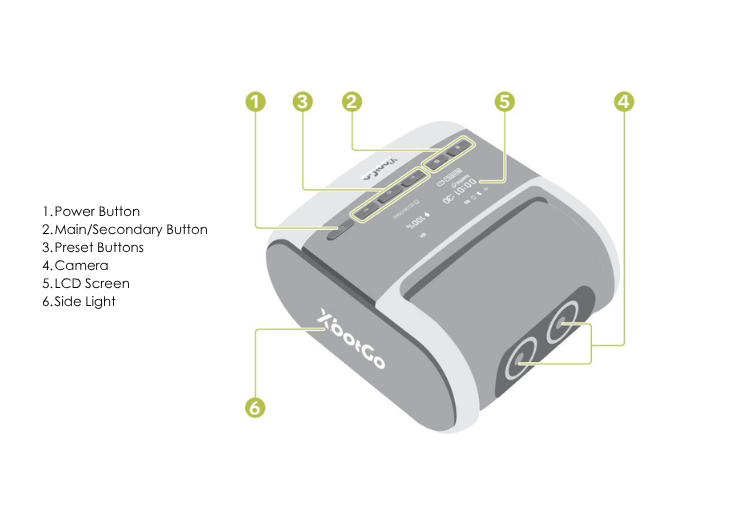
Power button: A short press turns the camera on or off. When it powers on, the lens recenters itself, and the screen shows a startup animation, the battery level, and storage status.
Power safety lock: Beside the power button, there’s a lock that prevents accidental touching of the power button, ensuring device safety during transport or storage. If this is in the lock position, your power button will not work as desired. If a short press does nothing, check the lock first.
LCD screen: The small screen on the camera body shows you what's happening at a glance: the current mode, recording status and duration, battery level, storage remaining, and icons for Wi-Fi, phone connection, and live streaming. It's the fastest way to confirm the camera is powered, connected, and ready.
M1, M2, and M3 buttons: These are the camera's three preset mode buttons. When you stream through TeamSnap ONE, you don't need to press them — TeamSnap ONE reads the sport from your game and configures the camera for you.
Lenses: The Falcon has two lenses. One captures the video that streams to TeamSnap ONE; the other powers the camera's auto-tracking, so it can follow the action on its own. You'll choose your stream quality in TeamSnap ONE when you set up the stream — there's nothing to adjust on the camera itself.
Side light The small light on the side of the camera tells you its status — whether it's connected, asleep, or needs attention. See what the lights and beeps mean below.
What the lights and beeps mean
The side light changes to show the camera's status:
|
Side light |
What it means |
| Slow pulsing | Powered on, not yet connected to TeamSnap ONE |
| Solid | Connected to TeamSnap ONE |
| Off | Asleep after a period of inactivity |
| Flashes twice | Waking from sleep |
| Flashing white | Resetting to factory settings |
| Flashing red | Needs attention — low battery, or a storage card that's full or unreadable |
The camera also uses short beeps:
|
Beep |
What it means |
| One short beep | Recording started or stopped |
| Two short beeps | Storage card full (recording stops and saves), or battery below 5% |
Tip: A slow pulsing light when you're trying to stream usually just means the camera hasn't connected to TeamSnap ONE yet. Tap to wake it, keep your phone close, and start the connection from TeamSnap ONE.
Ports and slots
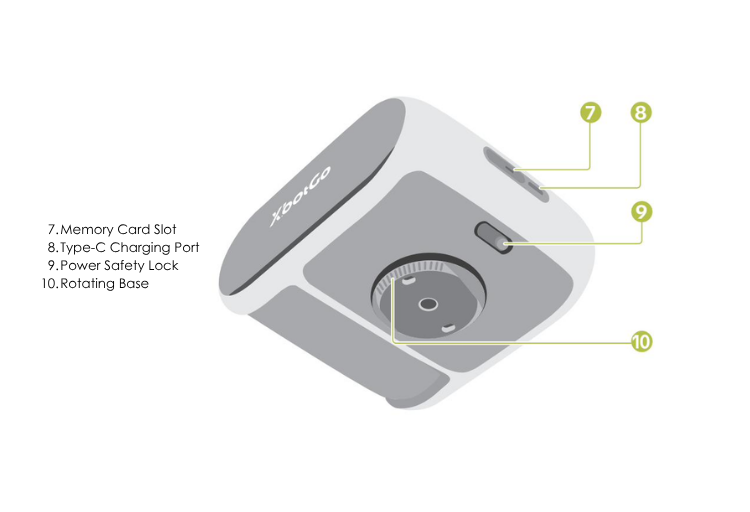
microSD (memory) card slot: The Falcon has a microSD card slot. While using TeamSnap ONE, your games stream live and are saved automatically, and are available to watch as a replay with an upgrade to TeamSnap+.
USB-C charging port: You charge the Falcon through the USB-C port using the included cable. See Charging your Falcon below.
Rotating base: The base attaches to a tripod using the included quick-release plate. For where and how high to place it, see Mount and position your Falcon camera.
Charging your Falcon
Charge the Falcon fully before game day.
- Connect the included USB-C cable to the USB-C port on the camera.
- Plug the other end into a USB power adapter.
- Watch the LCD screen — it shows charging status while the camera charges. If you don't see a charging indicator, check that the cable and adapter are firmly connected.
A full charge takes about 2 hours and gives you roughly 3 to 4 hours of streaming.
Tip: For longer tournaments, keep a power bank in your bag. You can charge the Falcon over USB-C while it runs.
A few care basics
- Keep the Falcon dry and store it in a cool place — not a hot car.
- Use it in temperatures between 0°C and 40°C (32°F to 104°F).
- After long sessions, the camera body may feel warm. That's normal.