
How to set up the bounding box on TeamSnap ONE
These features are currently being tested by programs that are a part of our Innovation Group. They are currently only available to iOS users and will be available to all programs on TeamSnap ONE and Android users soon.
The Bounding Box is how you tell your XbotGo Falcon where the game is happening. It marks the boundaries of your playing area so the camera follows your game — not the team warming up on the next field, the game on the court beside you, or people walking past. Setting it takes less than a minute and makes the XbotGo Falcon's auto-tracking noticeably more accurate.
You set the Bounding Box in TeamSnap ONE right after you connect your camera, on the setup screen with the live camera preview — before you go live.
Note: The Bounding Box is optional and appears for sports that the Falcon auto-tracks: soccer, basketball, lacrosse, ice hockey, volleyball, flag football, tackle football, field hockey, rugby, and tennis.
For sports set up without auto-tracking — like baseball, softball, wrestling, track and field, and cheerleading — TeamSnap ONE turns tracking off for you, and you won't see this step. The camera films a steady, fixed view of the action instead of panning to follow it. There's nothing you need to set.
You can skip setting up the bounding box and start streaming right away, but for tracked sports it's worth the minute it takes — without it, the camera may follow movement outside your playing area.
Before you start:
- Have your camera mounted in its final spot.
- Connect it to TeamSnap ONE
- You should only begin to set your Bounding Box once the camera is mounted at the height and angle you'll actually use. Lining the points up against the live preview only works if the view matches where the camera will sit during the game.
Set up your view
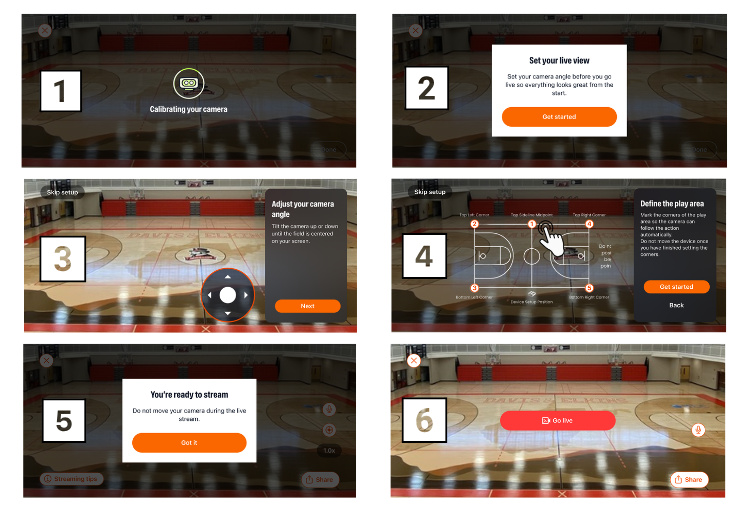
After your camera connects, you'll land on the setup screen showing a live view from the XbotGo Falcon.
- Use the live preview to adjust the camera's angle until the playing area is framed the way you want.
- When prompted to set your Bounding Box, follow the on-screen steps. TeamSnap ONE walks you through each point in order.
- Click each point twice to set and mark the playing area — start with the center point and then the four corners of your field or court — dragging each one to line up with the real field in the live preview.
- Check that the outline matches your playing area, then confirm.
That's it — the Falcon will keep its tracking inside the area you marked.
After it's set
It locks once you're live. You can't change the Bounding Box during an active stream. To change it, you'll need to end or interrupt the stream and go back through setup — so get it lined up before you start. You can still use the camera controls to pan and tilt during the stream; that won't interrupt anything.
Testing first? You can select your Falcon in a test live stream and practice the whole setup — camera, connection, framing, and Bounding Box — before a real game. It's a lower-pressure way to get comfortable with the steps.