
How to connect your XBotGo Falcon to TeamSnap ONE
These features are currently being tested by programs that are a part of our Innovation Group. They are currently only available to iOS users and will be available to all programs on TeamSnap ONE and Android users soon.
Connecting your XbotGo Falcon to TeamSnap ONE lets the camera stream your game into the app, follow the action on its own, and turn your game into a replay afterward. You do it all inside TeamSnap ONE — there's no separate app to download or sign into.
Connecting happens in two parts: first, your phone finds the camera over Bluetooth, then the camera joins a Wi-Fi network so it can stream. The most important thing to know going in is that your phone and the camera have to end up on the same network — that's how TeamSnap stays in control of the camera while it films.
The first time takes a few minutes. After that, reconnecting to a camera you've used before is quicker.
Before you start:
- Charge your Falcon and power it on. Keep it close to your phone while you connect — within about 20 yards.
- Check that the power safety lock next to the power button is in the unlock position. If it's locked, the camera won't power on or connect.
- Ensure your phone’s Bluetooth is on
- Know which Wi-Fi network you'll use and have its password handy. No Wi-Fi at the field? You can stream using your phone's personal hotspot instead. Make sure your hotspot is discoverable
- Mount your camera on your tripod
Note: If you also have the XbotGo app installed, close it completely before you start — not just disconnect inside it. If that app is open, it can grab the camera first and keep TeamSnap from finding it.
Start the connection
You can connect to an XbotGo Falcon from a real game or from a test stream — the steps are the same.
Note: TeamSnap ONE and your XbotGo Falcon will be connected by Bluetooth. Your connection can't be initiated if your Bluetooth is turned off or access is denied on your phone or camera.
- Open TeamSnap ONE and go to the game you want to stream.
- (To practice first, go to Test live stream instead.)
- Tap Live stream.
- If it's your first time streaming with your XbotGo, TeamSnap ONE will ask for permission to use Bluetooth; tap Allow so the app can find your camera.

Find your camera and connect to Wi-Fi
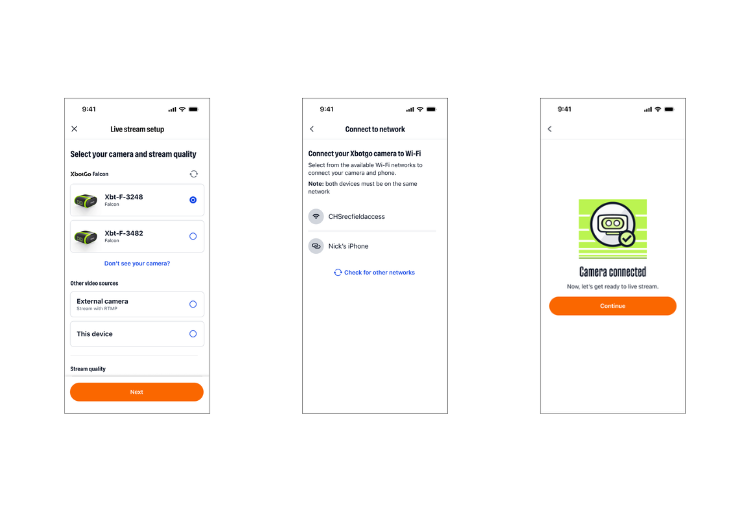
Once Bluetooth is on, TeamSnap starts searching and lists the Falcon cameras it finds nearby.
- Wait a moment as cameras appear in the list. Each one shows its name — either its default name (like XbtF-3248) or a friendly name someone saved earlier (like Field 1 Camera).
- Tap the camera you want to use.
- Hit the “Next” button
Note: XbotGo does not support 480p streaming, so that option will not be available.
At a tournament or a club with several cameras, more than one Falcon may show up. Pick the one that matches the name on your camera or your field. If you connect to the wrong one, disconnect and choose again.
Don't see your camera? Check that it's powered on and within range of your phone, and make sure the Xbotgo app is fully closed. Then search again. If it still doesn't appear, see Troubleshooting your Falcon.
After your phone finds the camera over Bluetooth, the camera needs to join a Wi-Fi network so it can send your stream out to viewers.
- On the Connect to network screen, wait for the list of available networks to appear.
- Tap the network you want the camera to use. If you're connecting to wifi (not a hotspot), you must permit connecting the phone to the same wifi
- Both your phone and camera must be connected to the same network to live stream.

Important: Your phone and the camera must be on the same Wi-Fi network. If you’re on different networks, TeamSnap ONE will prompt you to connect your phone to the same network as your camera. Make sure to accept this prompt.

Tip: No networks at the field? Turn on your phone's personal hotspot and choose it from the list. Keep your phone within about 20 yards of the camera once you're streaming — beyond that, the stream can start to cut out. If you try connecting and your camera isn't picking up your hotspot, toggle it off and back on.
Update firmware (if prompted)
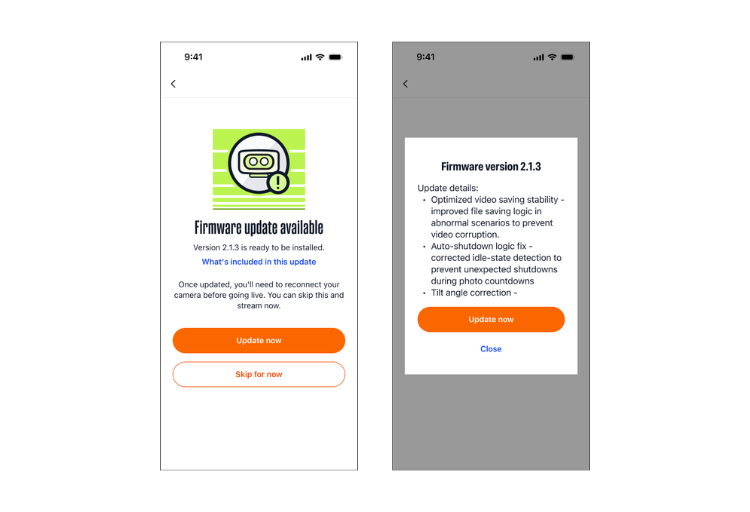
If your camera has an update available and is at least 50% charged, TeamSnap ONE lets you know after it connects.
You can install it then, or skip it and stream now — an update is never required to start a live game. It's best to update when you're not about to stream, since you'll need to reconnect the camera afterward.
Note: When you connect during a test live stream, TeamSnap may prompt you to update before continuing — a good reason to run a test before game day.
You're connected
When you see “Camera connected,” your XbotGo Falcon is ready. From here, TeamSnap automatically sets the camera up for your sport using your game details — you don't pick a sport or adjust anything on the camera itself. Next, you'll frame the field or rink and go live.