
Using Direct and Group Messaging on TeamSnap ONE
Beyond the main Team Chat, TeamSnap ONE also empowers you with the ability to have private direct messages (DMs) with individuals or create custom group conversations with select members of your team or organization. This is perfect for quick one-on-one questions, planning small sub-group activities, or confidential discussions
How to View Messages in TeamSnap ONE
- Open the TeamSnap ONE app on your mobile device
- Tap on the Messages tab in the bottom navigation bar
- On the Messages screen, you'll see a list of all your existing conversations. This includes your main Team Chat for each team you're on, as well as any existing Direct Messages (DMs) and Group Conversations you're a part of
- To read or send messages in any of these existing conversations, simply tap on the conversation from the list. Once opened, you can read messages and use the message input field at the bottom to type and send new messages
Steps to Create a New Direct Message or Group Conversation
- Click on Messages
- Click on the Orange Create Icon (which looks like a pencil) located at the bottom right corner of the screen
- Select a Team
- Select Participants:
- For a Direct Message (DM): Tap on the name of the single person you want to have a private conversation with
- For a Group Conversation: Tap on the names of all the individuals you wish to include in the new group. You can select multiple people
- Once you have selected all the desired participants, tap on the Checkmark Icon (located at the top right corner of the screen)
- The new direct message or group conversation will now be created and opened. You can immediately start sending messages using the message input field at the bottom, just like in any other TeamSnap ONE chat
Pro Tip: Name Your DMs or Group Conversations
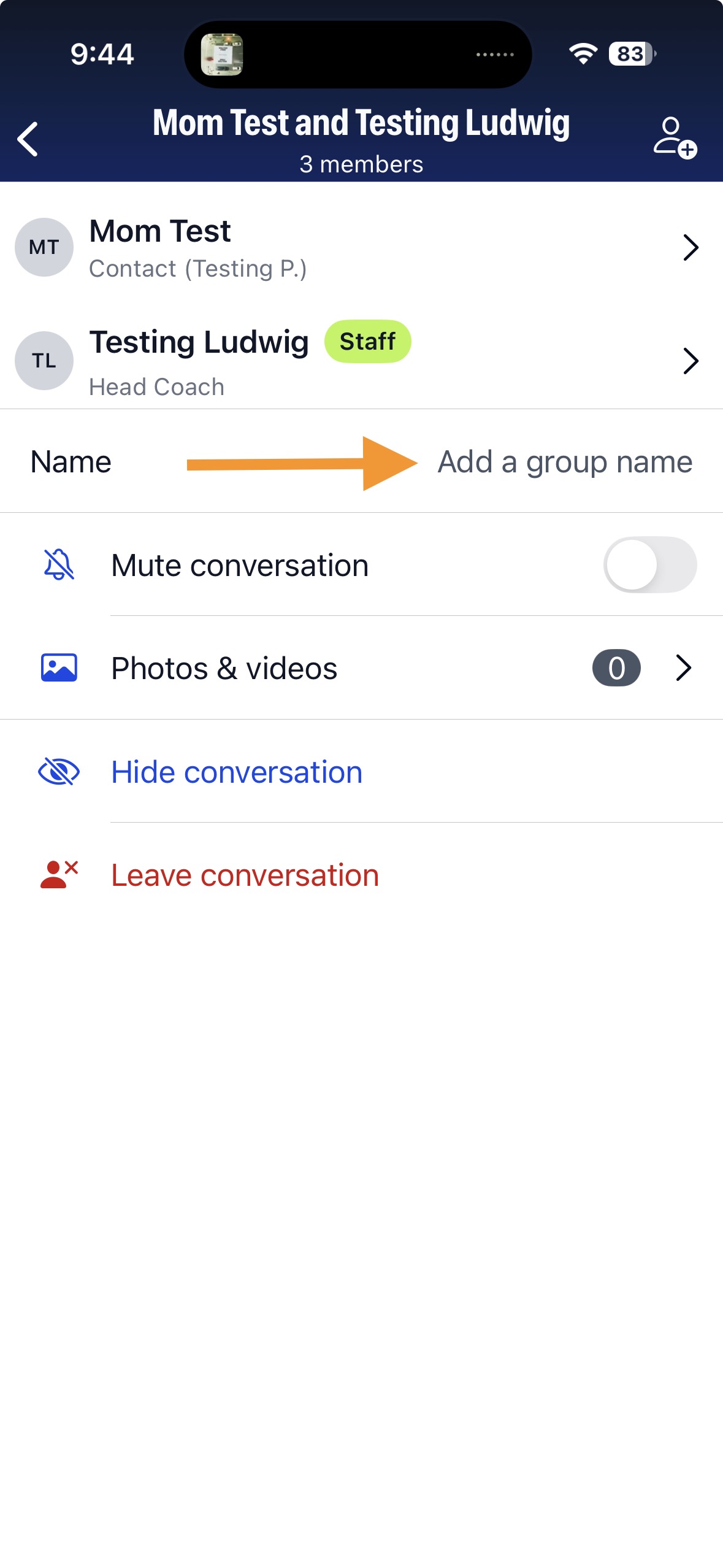
- While direct messages or group conversations will automatically be named after the participants, you can give them a Custom Name to make it easier to identify later.
- In any active conversation (direct or group), tap on the Three-Dot Menu (•••) located in the top right corner of the conversation screen
- Click Add a Group Name
Direct and Group Messaging in TeamSnap ONE offers a flexible way to communicate with specific individuals or smaller groups, ensuring that important discussions reach the right people quickly and efficiently.