Adding or Removing Contacts for Players
TeamSnap ONE lets you manage your player's contacts directly from the app. What you can do depends on whether you're a primary or non-primary contact.
Contact Types
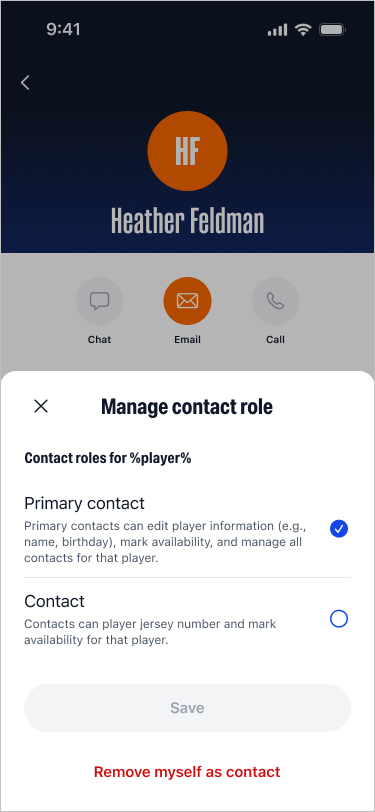
- A Primary Contact can view team info, edit name and jersey number, can add other contacts, and can remove themselves as a contact as long as there is another primary contact for that player.
- A Non-Primary Contact can view team info, can edit jersey number, and can remove themselves as a contact.
How to Add a Contact for your Player
- Open the TeamSnap ONE Mobile App then select the Team
- Go to your Player's Profile by tapping their name on the roster
- Tap Add Contacts
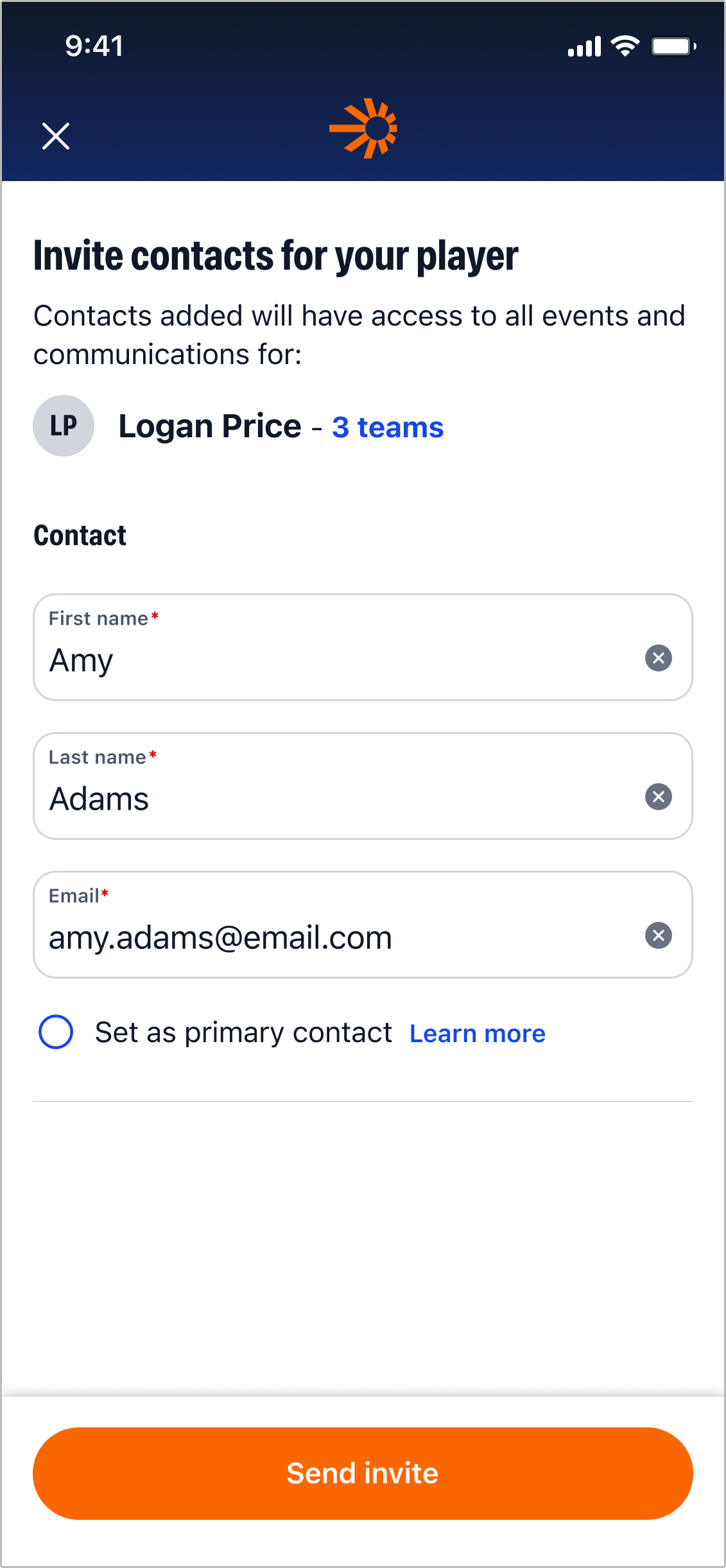
- Enter the new contact's First Name, Last Name, and Email Address
- Choose whether to add them as a Primary or Non-Primary contact
- Tap Send Invite
The new contact will receive an email invitation. If they already have a TeamSnap account, they'll be added automatically.
Please Note: Adding a contact gives them access to All Teams your player is currently on.
How to Change a Contact to Primary (or Remove Primary status)
- Open the TeamSnap ONE Mobile App then select the Team
- Go to your Player's Profile by tapping their name on the roster
- Tap a Contact’s Name
- Select Edit
- Toggle between Primary Contact or Contact and save your changes
Please Note: Removing primary status from a contact keeps them connected to your player — they just become a non-primary contact. You can only remove primary status from yourself if there is at least one other primary contact for the player.
How to Remove Another Contact
- Open the TeamSnap ONE Mobile App then select the Team
- Go to your Player's Profile by tapping their name on the roster
- Tap a Contact’s Name
- Select Edit
- Tap Remove Contact and confirm
Please Note: If that person is not connected to any other players on the team, they will lose access to the team.
How to Remove Yourself as a Contact
- Open the TeamSnap ONE Mobile App then select the Team
- Go to your Player's Profile by tapping their name on the roster
- Select Edit
- Tap Remove Myself as Contact and confirm
Please Note:
- You can remove yourself as a contact as long as there is at least one other primary contact for the player
- Non-primary contacts can remove themselves from a player. You can do this as long as there is at least one primary contact remaining for the player
Web Access for Users to Manage their Accounts and Contacts
-
Sign-in on the web at https://identity.teamsnap.com/
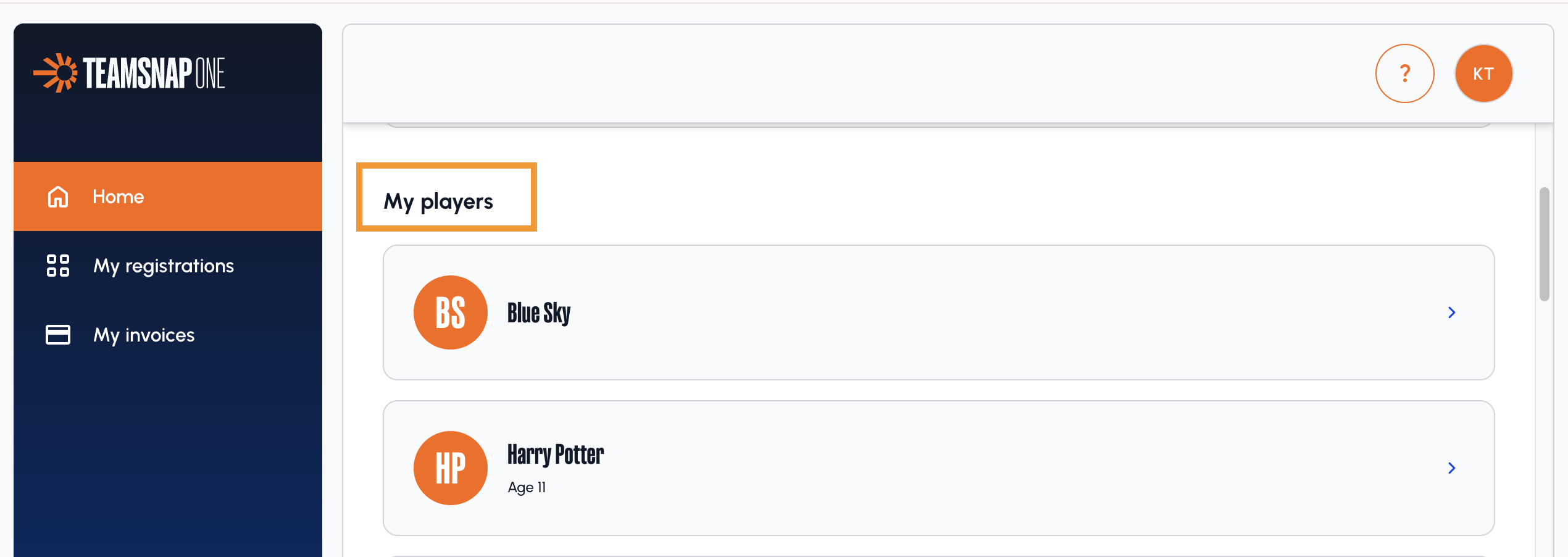
- Scroll down and you'll see My Players
- Click on your Players Name to manage their contacts